自建真站 + 路径分流
- 建站相关
- 6小时前
- 5热度
- 0评论
1/安装 Caddy 与 ffmpeg(一步到位)
在新服务器终端执行以下命令,安装官方版 Caddy 和用于视频标准化的 ffmpeg:
apt update && apt install -y debian-keyring debian-archive-keyring apt-transport-https curl ffmpeg
curl -1sLf 'https://dl.cloudsmith.io/public/caddy/stable/gpg.key' | gpg --dearmor -o /usr/share/keyrings/caddy-stable-archive-keyring.gpg --yes
curl -1sLf 'https://dl.cloudsmith.io/public/caddy/stable/debian.deb.txt' | tee /etc/apt/sources.list.d/caddy-stable.list
apt update && apt install -y caddy2/部署静态视频伪装网页与标准 MP4 视频
创建网站目录并拉取官方稳定测试视频,直接转码为网页原生秒开的
mkdir -p /var/www/video/videos生成index.html
<!DOCTYPE html>
<html lang="zh-CN">
<head>
  <meta charset="UTF-8" />
  <meta name="viewport" content="width=device-width, initial-scale=1.0" />
  <title>个人影像资料库 - 4K 风景与测试样片</title>
  <style>
    :root {
      --bg: #0f172a;
      --card: #1e293b;
      --card-hover: #334155;
      --text: #f8fafc;
      --muted: #94a3b8;
      --accent: #38bdf8;
      --border: #334155;
    }
    * { box-sizing: border-box; margin: 0; padding: 0; }
    body {
      font-family: -apple-system, BlinkMacSystemFont, "Segoe UI", Roboto, "Helvetica Neue", Arial, sans-serif;
      background-color: var(--bg);
      color: var(--text);
      line-height: 1.6;
      padding: 24px 16px;
    }
    .container {
      max-width: 1120px;
      margin: 0 auto;
    }
    header {
      display: flex;
      justify-content: space-between;
      align-items: center;
      margin-bottom: 24px;
      padding-bottom: 16px;
      border-bottom: 1px solid var(--border);
    }
    header h1 {
      font-size: 1.35rem;
      font-weight: 600;
      letter-spacing: 0.5px;
    }
    header span {
      font-size: 0.85rem;
      color: var(--muted);
    }
    .main-grid {
      display: grid;
      grid-template-columns: 1fr 340px;
      gap: 24px;
    }
    @media (max-width: 860px) {
      .main-grid { grid-template-columns: 1fr; }
    }
    .player-card {
      background: var(--card);
      border-radius: 12px;
      overflow: hidden;
      border: 1px solid var(--border);
    }
    .video-wrap {
      position: relative;
      width: 100%;
      aspect-ratio: 16 / 9;
      background: #000;
    }
    video {
      width: 100%;
      height: 100%;
      display: block;
      object-fit: contain;
    }
    .video-meta {
      padding: 18px 20px;
    }
    .video-title {
      font-size: 1.15rem;
      font-weight: 600;
      margin-bottom: 6px;
    }
    .video-desc {
      font-size: 0.9rem;
      color: var(--muted);
    }
    .playlist-card {
      background: var(--card);
      border-radius: 12px;
      padding: 16px;
      border: 1px solid var(--border);
      display: flex;
      flex-direction: column;
      gap: 10px;
    }
    .playlist-header {
      font-size: 0.95rem;
      font-weight: 600;
      color: var(--muted);
      padding-bottom: 8px;
      border-bottom: 1px solid var(--border);
      display: flex;
      justify-content: space-between;
    }
    .playlist-item {
      display: flex;
      align-items: center;
      justify-content: space-between;
      padding: 12px 14px;
      border-radius: 8px;
      background: rgba(15, 23, 42, 0.5);
      border: 1px solid transparent;
      cursor: pointer;
      transition: all 0.18s ease;
    }
    .playlist-item:hover {
      background: var(--card-hover);
    }
    .playlist-item.active {
      border-color: var(--accent);
      background: rgba(56, 189, 248, 0.12);
    }
    .item-info {
      display: flex;
      flex-direction: column;
      gap: 2px;
      padding-right: 10px;
    }
    .item-title {
      font-size: 0.95rem;
      font-weight: 500;
      color: var(--text);
    }
    .playlist-item.active .item-title {
      color: var(--accent);
    }
    .item-sub {
      font-size: 0.78rem;
      color: var(--muted);
    }
    .badge {
      font-size: 0.75rem;
      padding: 2px 8px;
      border-radius: 999px;
      background: var(--bg);
      color: var(--muted);
      white-space: nowrap;
    }
    .playlist-item.active .badge {
      background: var(--accent);
      color: #0f172a;
      font-weight: 600;
    }
    footer {
      margin-top: 32px;
      text-align: center;
      font-size: 0.8rem;
      color: var(--muted);
    }
  </style>
</head>
<body>
  <div class="container">
    <header>
      <h1>个人摄影与影像归档</h1>
      <span>HTML5 原生流媒体演示站</span>
    </header>

    <div class="main-grid">
      <div class="player-card">
        <div class="video-wrap">
          <video id="player" controls preload="metadata" playsinline></video>
        </div>
        <div class="video-meta">
          <div class="video-title" id="current-title">加载中...</div>
          <div class="video-desc" id="current-desc"></div>
        </div>
      </div>

      <aside class="playlist-card">
        <div class="playlist-header">
          <span>播放列表</span>
          <span id="video-count">0 个视频</span>
        </div>
        <div id="playlist"></div>
      </aside>
    </div>

    <footer>
      <p>© 2026 Personal Media Archive. All rights reserved.</p>
    </footer>
  </div>

  <script>
    // 在这里修改你的本地 MP4 文件名和描述
    const videos = [
      {
        title: "01. 草原与火山地质航拍样片",
        desc: "H.264 编码测试片段,包含高动态范围风景画面与原生音轨。",
        src: "./videos/sample1.mp4",
        duration: "1080P · MP4"
      },
      {
        title: "02. 城市延时摄影与夜景测试",
        desc: "用于测试 HTTP Range 分片缓冲与高码率流媒体加载表现。",
        src: "./videos/sample2.mp4",
        duration: "1080P · MP4"
      },
      {
        title: "03. 自然风光与海岸线记录",
        desc: "长时连续播放稳定性测试样片。",
        src: "./videos/sample3.mp4",
        duration: "720P · MP4"
      }
    ];

    const player = document.getElementById("player");
    const titleEl = document.getElementById("current-title");
    const descEl = document.getElementById("current-desc");
    const playlistEl = document.getElementById("playlist");
    const countEl = document.getElementById("video-count");

    let currentIndex = 0;

    function loadVideo(index, autoPlay = false) {
      currentIndex = index;
      const item = videos[index];
      player.src = item.src;
      titleEl.textContent = item.title;
      descEl.textContent = item.desc;
      renderPlaylist();
      if (autoPlay) {
        player.play().catch(() => {});
      }
    }

    function renderPlaylist() {
      countEl.textContent = <code>${videos.length} 个视频</code>;
      playlistEl.innerHTML = "";
      videos.forEach((v, idx) => {
        const div = document.createElement("div");
        div.className = "playlist-item" + (idx === currentIndex ? " active" : "");
        div.innerHTML = `
          <div class="item-info">
            <div class="item-title">${v.title}</div>
            <div class="item-sub">${v.src.replace("./videos/", "")}</div>
          </div>
          <span class="badge">${idx === currentIndex ? "播放中" : v.duration}</span>
        `;
        div.onclick = () => loadVideo(idx, true);
        playlistEl.appendChild(div);
      });
    }

    // 播放完毕自动切下一个
    player.addEventListener("ended", () => {
      const next = (currentIndex + 1) % videos.length;
      loadVideo(next, true);
    });

    // 初始化默认加载第一个视频(不自动播放,符合现代浏览器策略)
    loadVideo(0, false);
  </script>
</body>
</html>
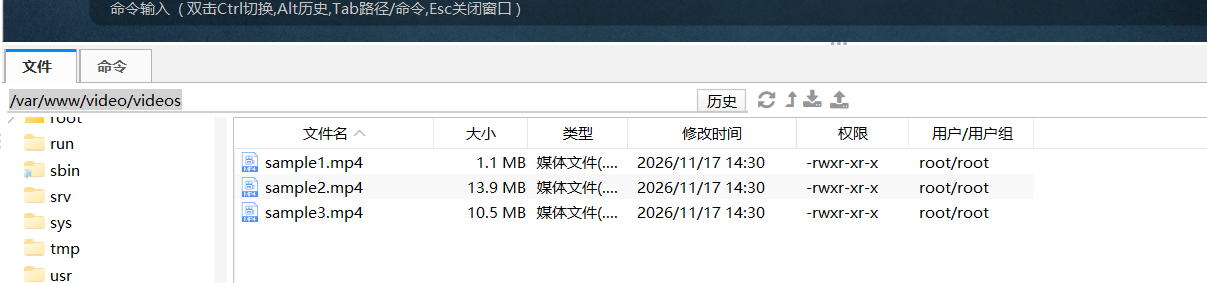
chmod -R 755 /var/www/video上传3个MP4 sample1.mp4 sample2.mp4 sample3.mp4视频到/var/www/video/videos
3/写入 Caddy 路径分流配置并签发证书
将下面命令中的 你的新域名(例如 xx.xxx.xyz)替换后执行:
cat > /etc/caddy/Caddyfile << 'EOF'
{
    email cn0514@gmail.com
}

你的新域名 {
    reverse_proxy /stream/v1* 127.0.0.1:10000

    root * /var/www/video
    file_server
}
EOF

caddy fmt --overwrite /etc/caddy/Caddyfile
systemctl enable --now caddy
systemctl restart caddy
等待约 10 秒后用浏览器打开 https://你的新域名,地址栏显示小锁(HTTPS 生效)且能正常播放 3 个视频。
4/配置 3x-ui 节点并导出客户端链接
3x-ui 入站节点设置:
协议: vless
监听: 127.0.0.1
端口: 10000
传输: WebSocket
路径: /stream/v1(主机留空)
安全: 无
保存并删除原有的直连裸露端口入站。
5/最终节点链接模板:
把面板生成的 UUID 和新域名填入下方链接,直接放进更新后的 v2clash.exe 生成配置即可(已内置 alpn=http/1.1,完美兼容 ShellCrash 路由器与手机客户端):
Plaintext
vless://替换成新节点的UUID@你的新域名:443?type=ws&encryption=none&security=tls&sni=你的新域名&fp=chrome&alpn=http%2F1.1&host=你的新域名&path=%2Fstream%2Fv1#新节点备注名